

WHERE CAN I VIEW THE DEMO OF THE BREVIEW PLUGIN?
You can view the demo of the Breview plugin here. You can find the login details below.
Admin Login Details :-
Login URL: https://demo.mswebarts.com/breview/my-account
Username: demo-adminPassword: demo-admin
Customer Login Details :-
Login URL: https://demo.mswebarts.com/breview/my-accountUsername: demo-customerPassword: demo-customer
HOW CAN I SEE WHAT FEATURES ARE AVAILABLE?
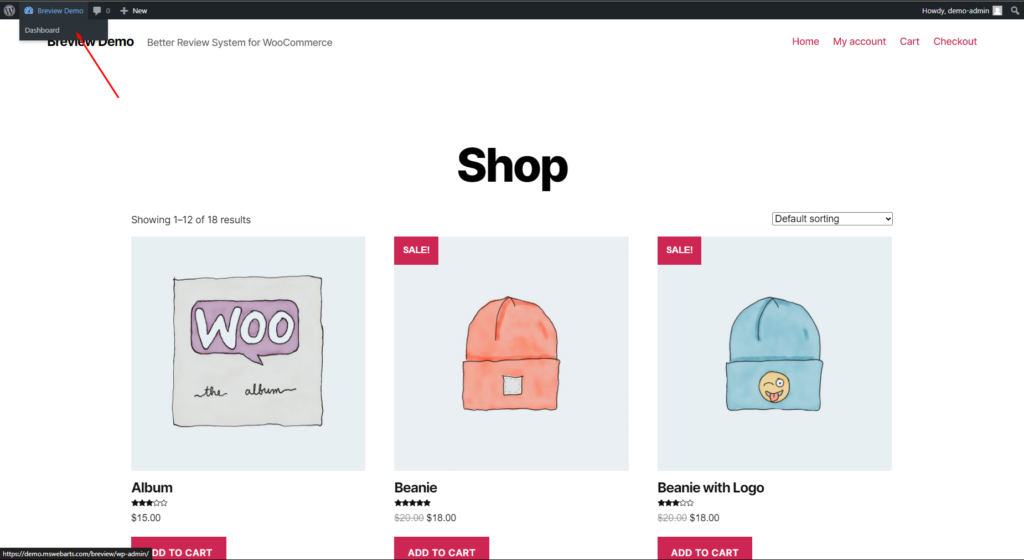
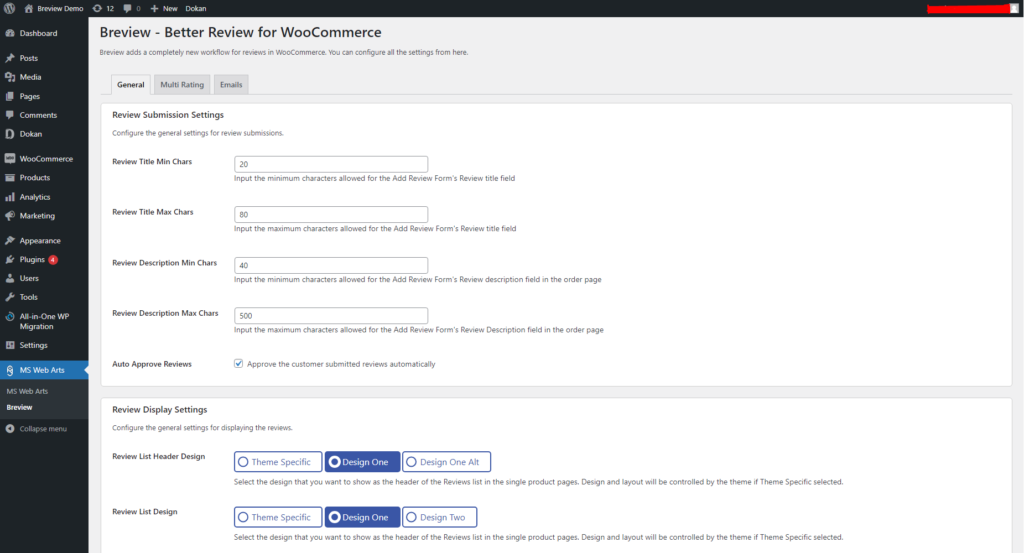
You need to log in to the website using the demo-admin user. Once you are logged in, you can find the admin Dashboard page on the top left side like the below image. Then go to MS Web Arts -> Breview from the left menu, or directly go to the page by clicking on Breview Settings.
Previous
Next
How does Breview work for customers?
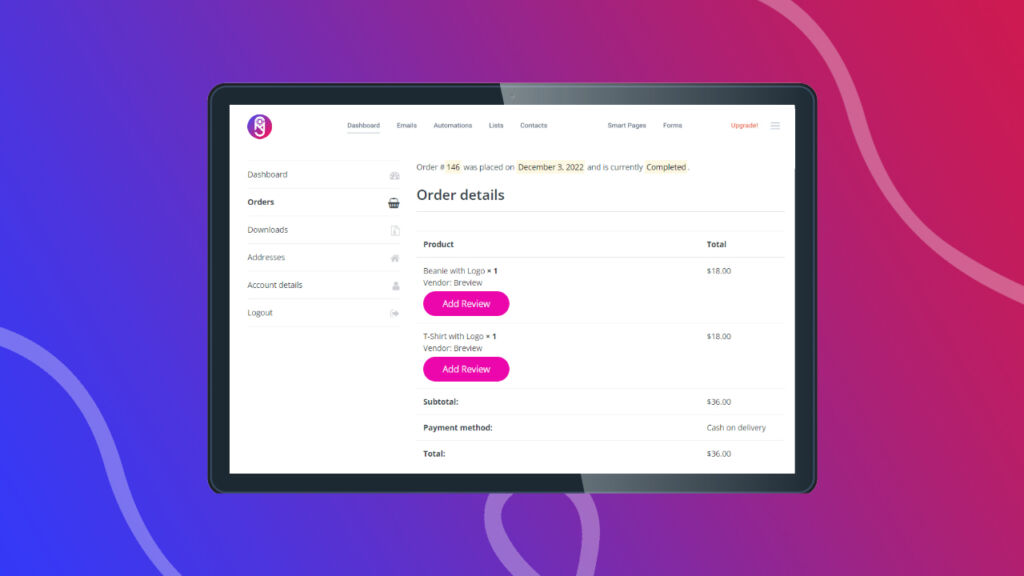
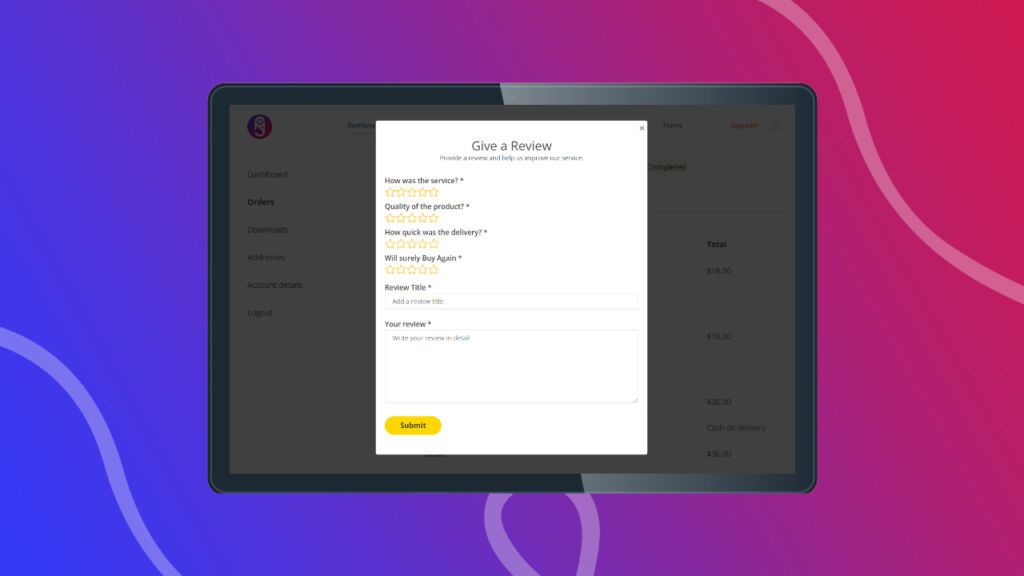
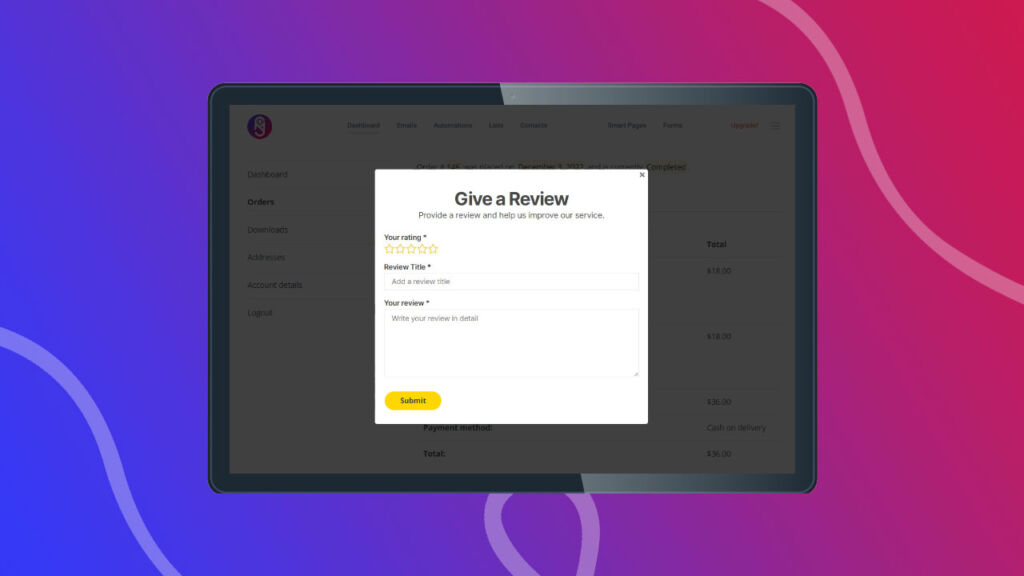
The Breview plugin lets customers add reviews to the products right from the order page after an order gets completed, similar to how marketplaces like Amazon, Aliexpress and almost any e-commerce website work.
You can login to the Breview Demo website using the demo-customer user details.
You can see what the Review submission form looks like on the order page from here and how it looks for orders where the review has already been submitted from here. To see what Dokan orders consisting of multiple vendors look like, check it here.
Note: All of these links are page links for orders that were placed using the demo-customer user. So, if you are logged in to demo-admin or any other user account, these links will not work for you.
Previous
Next
Conclusion
The Breview Demo website was set up to give you an idea of how the Breview – Better Review for WooCommerce works. We have disabled the ability to submit reviews, place new orders, or save any admin settings so that all the users can see the same demo. Hopefully, this article was able to give you a proper idea of how you can navigate through the website and access it. If you have any questions, feel free to contact us following one of the Support channels


